 707c49dd3f
Complete website build including:
- Build Your Kit store page with cart system, sectioned layout
  (Hardware, Software, Attachments, Spare Parts), inline quote
  request form, and sticky sidebar summary
- 16+ pages: Education, Platform, Resources, News, About Us,
  Download, Contact, Rover, Code Editor, Robot Simulator, etc.
- 89+ MDX resource articles and 18 news posts
- Store product images scraped from micromelon.com.au
- Quote request API route with Airtable integration
- Dynamic back links and cover photos on resource pages
- Redesigned downloads page
- Fixed corrupted MDX code blocks
133 lines
6.0 KiB
Plaintext
133 lines
6.0 KiB
Plaintext
---
|
||
title: "Activity: Servo Gauge"
|
||
date: "2024-12-31"
|
||
categories: ["Activities", "All", "Simulator Activities"]
|
||
tags: ["Attachments", "Servo Motors", "Intermediate"]
|
||
excerpt: "Use a micro servo to make your own visual gauges. Program the gauge to react to a sensor value, motor speed, or robot tilt to visualise data in a new way. In this activity, we’ll be making a gauge to display the stability of the rover."
|
||
featuredImage: "/images/resources/activity-servo-gauge.jpg"
|
||
---
|
||
|
||
Use a micro servo to make your own visual gauges. Program the gauge to react to a sensor value, motor speed, or robot tilt to visualise data in a new way. In this activity, we’ll be making a gauge to display the stability of the rover.
|
||
|
||
### Setup
|
||
|
||
**1) **We need a visual scale to attach to the servo. Start by printing the scale attachment below. It can help to glue the paper to card or cardboard for additional rigidity.
|
||
|
||
[Scale Attachment](/s/gauge.png)
|
||
|
||

|
||
|
||
**2) **Cut out the scale on the outer black line, as shown in the picture below.
|
||
|
||

|
||
|
||
**3) **Position the scale on the front of the servo with the axle at the centre of the scale. Poke through the circles on the scale, and screw in two servo-mounting screws to keep the scale in place.
|
||
|
||

|
||
|
||
**4) **Connect the servo to the left servo port on the rover and turn it on. Calibrate the servo by setting the servo to position -90, and attaching the servo horn pointing to the red portion on the scale.
|
||
|
||

|
||
|
||

|
||
|
||
### Here’s Our Approach
|
||
|
||
**Constant - **A constant is a variable that never changes when the code is run. In python, we write this in all capitals with underscores between words.
|
||
|
||
#### 1) Prepare the Loop:
|
||
|
||

|
||
|
||
Start by setting up a ‘While’ loop that will run forever. The gauge will read the sensor and update itself each time in this loop.
|
||
|
||
#### **2) The Scale Function:**
|
||
|
||
|
||
|
||
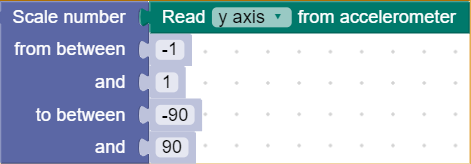
1st row (x) - This is the sensor value that will be scaled
|
||
|
||
2nd row (xmin) - This is the lowest number the sensor can be
|
||
|
||
3rd row (xmax) - This is the highest number the sensor can be
|
||
|
||
4th row (newMin) - The lowest number the scaled value can be
|
||
|
||
5th row (newMax) - The highest number the scaled value can be
|
||
|
||
From the math section, grab the ‘Scale Number’ block. The purpose of this block is to take an input (like a sensor reading) and scale it to suit an output (like servo movements). This block works similarly to the diagram below. Here are the inputs for the block:
|
||
|
||

|
||
|
||
*Example of the scale function from [0, 1023] to [0, 4]*
|
||
|
||
For this activity, we will use the y-axis of the accelerometer as our sensor. The limits of this sensor are [-1, 1]. We will connect this to the output of a servo with limits of [-90, 90]. Fill in the ‘Scale’ block using these values.
|
||
|
||
#### **3) Complete Code:**
|
||
|
||
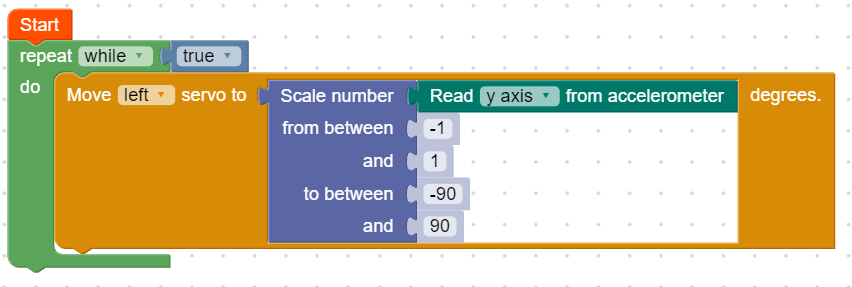
Finally, place a ‘Move Servo’ block into the loop and put the scale function inside. Run the code and tilt the robot on its side. The gauge should move the hand the more you tilt the rover.
|
||
|
||
|
||
|
||
**Tip: **
|
||
|
||
Try changing some of the colours on the scale and adding numbers to it. Maybe connect it to other sensors like the Ultrasonic, and use the gauge to display how close an object is to the rover.
|
||
|
||
### Related Posts
|
||
|
||
Resources
|
||
|
||
[
|
||
|
||

|
||
|
||
](/resources/creating-a-sumo-unit)
|
||
|
||
[All](/resources?category=All)
|
||
|
||
[Creating A Sumo Unit For Your Digital Technologies Class](/resources/creating-a-sumo-unit)
|
||
|
||
[All](/resources?category=All)
|
||
|
||
How to run a sumo unit in your digital technologies classroom.
|
||
|
||
[Read More →](/resources/creating-a-sumo-unit)
|
||
|
||
[All](/resources?category=All)
|
||
|
||
[
|
||
|
||

|
||
|
||
](/resources/ultrasonic-sensor)
|
||
|
||
[All](/resources?category=All), [Guides](/resources?category=Guides)
|
||
|
||
[The Ultrasonic Sensor](/resources/ultrasonic-sensor)
|
||
|
||
[All](/resources?category=All), [Guides](/resources?category=Guides)
|
||
|
||
Learn all about the ultrasonic sensor!
|
||
|
||
[Read More →](/resources/ultrasonic-sensor)
|
||
|
||
[All](/resources?category=All), [Guides](/resources?category=Guides)
|
||
|
||
[
|
||
|
||

|
||
|
||
](/resources/year-7-digital-tech-at-st-peters)
|
||
|
||
[All](/resources?category=All), [Customer Stories](/resources?category=Customer+Stories)
|
||
|
||
[Case Study: Year 7 Digital Tech at St Peters Lutheran College](/resources/year-7-digital-tech-at-st-peters)
|
||
|
||
[All](/resources?category=All), [Customer Stories](/resources?category=Customer+Stories)
|
||
|
||
See how Meg Foley at St Peters conducted a challenge for their Year 7s using Micromelon.
|
||
|
||
[Read More →](/resources/year-7-digital-tech-at-st-peters)
|
||
|
||
[All](/resources?category=All), [Customer Stories](/resources?category=Customer+Stories)
|